Showing posts with label macintosh. Show all posts

Monday, December 29, 2008

Vim For OS X

Whenever I do a Google search for "Vim for OS X" or "Vim for Mac" , it links to macvim.org, which has old binaries and hasn't been updated in a while. I thought I saw someone using a shiny, tabbed-interface Vim during Foss.my last month. I could have sworn it was Toru Maesaka, but after emailling him it turns out it wasn't him.

Anyway, tonight I finally found it! The newer Vim for Mac can be found at this page. It has goodies such as OS X keyboard bindings, tabbed multiple windows and transparency.

Monday, June 30, 2008

Macbook In The House

Yes, I got my own Mac. I couldn't help it, it was so cool-looking; like a monolith from 2001.

Photobucket


I've never had my own laptop before (or my own Mac, even though I've used plenty and my mother has one). Next I have to figure out how I can get Linux to run on this.

Thursday, November 29, 2007

Installing Leopard

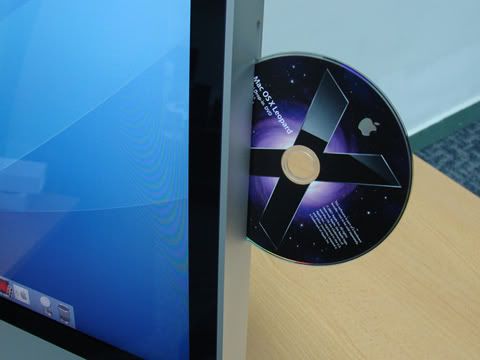
I spent the most of the morning installing Mac OS X 10.5 (Leopard) on the iMac. The installation was just pushing a few buttons and it took care of itself. The installer took forever to verify the DVD, but the install itself took only about 20 minutes.

Photo Sharing and Video Hosting at Photobucket


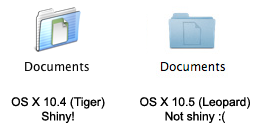
The rest of the day was spent waiting for the updates to download. While waiting I tried to get used to the new UI, and to figure out what's changed. Overall, it looks shinier than Tiger, but the new folder icons are dreadful. They have this dim look to them that makes you think they're not really an active part of the user interface, which is a terrible UI design choice.

Photo Sharing and Video Hosting at Photobucket

Also, the new firewall befuddles me. It has three settings:
  1. Allow all incoming connections
  2. Allow only essential services
  3. Set access for specific services and applications
The second option used to be called "Block all incoming connections", but it doesn't really do that, so Apple changed the description to "allow only essential services", which is not helpful either. What's essential? What isn't? They say the old IPFW firewall is still around, so I'll enable that instead of the application-level firewall they have now.

Apart from those issues, I think I like the new changes to the UI. The new dock is very pretty, as is the "stacking effect" when multiple documents spring up from a single dock slot. Spaces (multiple virtual desktops) are a welcome addition to the UI, as Mac OS X boldly takes users to where Unix desktops have been since the 1980's. The Quick Look feature is kind of neat (in a flashy way), as it lets you preview the contents of any particular file. I haven't taken a look at Time Machine (a file snapshot and archiving tool) yet, but it may come in handy for some of the things I need to do at work.

Tuesday, November 27, 2007

It Arrives Tuesday

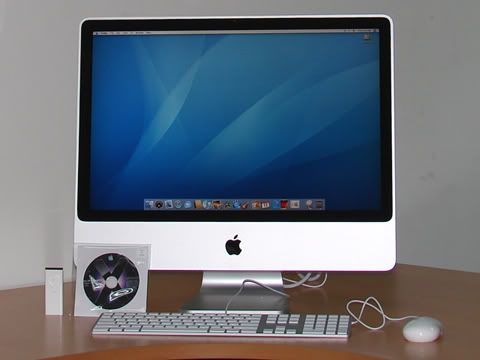
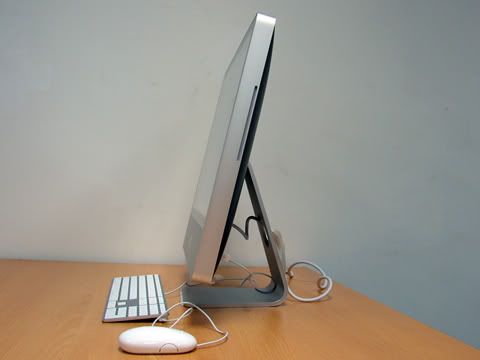
After a few weeks of anticipation, a very nice, shiny new iMac with a 24" screen and a 2.8GHz Intel Core 2 Extreme arrived at my workplace. It comes pre-installed with Tiger, but I got a Leopard DVD together with it so I'll be trying that out tomorrow.

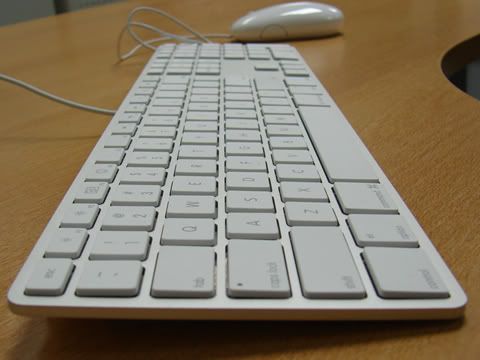
I can understand why Apple fans love their machines so much. It's so shiny.

Photo Sharing and Video Hosting at Photobucket


Photo Sharing and Video Hosting at Photobucket


Photo Sharing and Video Hosting at Photobucket

Tuesday, July 17, 2007

Taking Screenshots In Mac OS X

The keyboard shortcuts for taking screenshots is something I can never quite remember. Therefore I am writing this down here for my own reference:
  1. Command-Control-Shift-3 - Takes a screenshot of the entire screen and saves it to the clipboard.
  2. Command-Control-Shift-4 - Select an area with the mouse. This grabs a screenshot of the selected area and saves it to the clipboard.
  3. Command-Control-Shift-4 - Press space, then clicking on a window will take a screenshot of the window and save it to the clipboard.

You can also make it save to a file on the desktop instead of just copying it onto a clipboard buffer by omitting the Control key from all of the above keystroke combinations.

Saturday, April 14, 2007

Cocoa Tutorials

Cocoa is the programming API for developing Mac OS X applications.

I've been meaning to learn Cocoa for a while. Now that I have access to a Mac at home, I can finally dip my hands in some hot Cocoa.

Check out this tutorial by Drew McCormack for a nice, helpful intro, especially if you're a scientist working with a Mac.

Also, don't forget to check out Apple's tutorial on Cocoa and Objective C.