Showing posts with label linux. Show all posts

Monday, August 16, 2010

Happy 17th Birthday, Debian

Happy 17th birthday to Debian, my favourite distro. It's been a while since I hopped off Slackware onto Debian, and I haven't looked back since. The recent freeze of Squeeze means a new release is due soon, and I'm trying out the nightly build and it looks good! You can go to this site and celebrate Debian Appreciation Day by sending a thank you note to the developers.

Thursday, January 14, 2010

Getting Wireless To Work In USM Penang

Happy new year!

I have a new job, and it's keeping me kind of busy, so I won't be blogging much in these next few months. I got a laptop from the workplace, which came with Vista. I didn't really want to format a work laptop, so I even kept it for 24 hours. After that I couldn't stand it any more, and if a computer was to be useful to me, it can't be running Windows. Therefore, I zapped it and installed Debian. One of things I had to figure out was how to get the wireless to work inside the university, so here's how to do it.

This is for my own reference, as the IT centre in my university doesn't know much about Linux and can't really support it. However, making it work is a breeze.

This assumes you're running Debian or something that works like Debian, and have wireless drivers, firmware and related utilities installed. You'll need wpa_supplicant and optionally, ifscheme.

Just stick this in /etc/wpa_supplicant/wpa_supplicant.conf:

network={
ssid="USMHotspot"
key_mgmt=IEEE8021X
eap=PEAP
phase2="auth=MSCHAPV2"
identity="yourid"
password="supersekritpassword"
}

Replace 'yourid' with the ID that the IT centre assigns to you, and 'supersekritpassword' with the corresponding password.

Since I use ifscheme to switch between networking profiles (great tool btw, comes with Debian and examples on how to use it is here).

The entry I have in /etc/network/interfaces is as follows:

iface wlan0-usm inet dhcp
wpa-driver wext
wpa-conf /etc/wpa_supplicant/wpa_supplicant.conf
name USM


Whenever I want to use the USM wireless, I just type ifscheme usm; ifup wlan0 and I am done!

Sunday, February 15, 2009

Debian Lenny Released!

Oh, hey! New Debian stable! :)


From: Alexander Reichle-Schmehl [email blocked]
To: debian-announce@lists.debian.org
Subject: Debian GNU/Linux 5.0 released
Date: Sat, 14 Feb 2009 22:58:48 -1100


------------------------------------------------------------------------
The Debian Project http://www.debian.org/
Debian GNU/Linux 5.0 released press@debian.org
February 14th, 2009 http://www.debian.org/News/2009/20090214
------------------------------------------------------------------------

Debian GNU/Linux 5.0 released

The Debian Project is pleased to announce the official release of Debian
GNU/Linux version 5.0 (codenamed "Lenny") after 22 months of constant
development. Debian GNU/Linux is a free operating system which supports
a total of twelve processor architectures and includes the KDE, GNOME,
Xfce, and LXDE desktop environments. It also features compatibility with
the FHS v2.3 and software developed for version 3.2 of the LSB.

Debian GNU/Linux runs on computers ranging from palmtops and handheld
systems to supercomputers, and on nearly everything in between. A total
of twelve architectures are supported: Sun SPARC (sparc), HP Alpha
(alpha), Motorola/IBM PowerPC (powerpc), Intel IA-32 (i386), IA-64
(ia64), HP PA-RISC (hppa), MIPS (mips, mipsel), ARM (arm, armel), IBM
S/390 (s390), and AMD64 and Intel EM64T (amd64).

Debian GNU/Linux 5.0 "Lenny" adds support for Marvell's Orion platform
which is used in many storage devices. Supported storage devices include
the QNAP Turbo Station series, HP Media Vault mv2120, and Buffalo Kurobox
Pro. Additionally, "Lenny" now supports several Netbooks, in particular
the Eee PC by Asus. "Lenny" also contains the build tools for Emdebian
which allow Debian source packages to be cross-built and shrunk to suit
embedded ARM systems.

Debian GNU/Linux 5.0 "Lenny" includes the new ARM EABI port, "armel".
This new port provides a more efficient use of both modern and future ARM
processors. As a result, the old ARM port (arm) has now been deprecated.

This release includes numerous updated software packages, such as the K
Desktop Environment 3.5.10 (KDE), an updated version of the GNOME desktop
environment 2.22.2, the Xfce 4.4.2 desktop environment, LXDE 0.3.2.1, the
GNUstep desktop 7.3, X.Org 7.3, OpenOffice.org 2.4.1, GIMP 2.4.7,
Iceweasel 3.0.6 (an unbranded version of Mozilla Firefox), Icedove
2.0.0.19 (an unbranded version of Mozilla Thunderbird), PostgreSQL 8.3.6,
MySQL 5.0.51a, GNU Compiler Collection 4.3.2, Linux kernel
version 2.6.26, Apache 2.2.9, Samba 3.2.5, Python 2.5.2 and 2.4.6, Perl
5.10.0, PHP 5.2.6, Asterisk 1.4.21.2, Emacs 22, Inkscape 0.46, Nagios
3.06, Xen Hypervisor 3.2.1 (dom0 as well as domU support), OpenJDK 6b11,
and more than 23,000 other ready-to-use software packages (built from
over 12,000 source packages).

With the integration of X.Org 7.3 the X server autoconfigures itself with
most hardware. Newly introduced packages allow the full support of NTFS
filesystems and the use of most multimedia keys out of the box. Support
for Adobe(R) Flash(R) format files is available via the swfdec or Gnash
plugins. Overall improvements for notebooks have been introduced, such
as out of the box support of CPU frequency scaling. For leisure time
several new games have been added, including puzzle games as well as
first-person shooters. Also notable is the introduction of "goplay", a
graphical games browser offering filters, search, screenshots and
descriptions for games in Debian.

The availability and updates of OpenJDK, GNU Java compiler, GNU Java
bytecode interpreter, Classpath and other free versions of Sun's Java
technology, into Debian GNU/Linux 5.0 allow us to ship Java-based
applications in Debian's "main" repository.

Further improvements in system security include the installation of
available security updates before the first reboot by the Debian
Installer, the reduction of setuid root binaries and open ports in the
standard installation, and the use of GCC hardening features in the
builds of several security-critical packages. Various applications have
specific improvements, too. PHP for example is now built with the Suhosin
hardening patch.

For non-native English speaking users the package management systems now
support translated package descriptions and will automatically show the
description of a package in the native language of the user, if
available.

Debian GNU/Linux can be installed from various installation media such as
DVDs, CDs, USB sticks and floppies, or from the network. GNOME is the
default desktop environment and is contained on the first CD. Other
desktop environments - KDE, Xfce, or LXDE - can be installed through two
new alternative CD images. Again available with Debian GNU/Linux 5.0 are
multi-arch CDs and DVDs supporting installation of multiple architectures
from a single disc; and this release adds Blu-ray Discs, allowing the
archive for an entire architecture to be shipped on a single BD.

In addition to the regular installation media, Debian GNU/Linux can now
also be directly used without prior installation. The special images
used, known as live images, are available for CDs, USB sticks, and
netboot setups. Initially, these are provided for the amd64 and i386
architectures only.

The installation process for Debian GNU/Linux 5.0 has been improved in
many ways: among many other improvements, support for installation from
more than one CD or DVD has been restored, firmware required by some
devices can be loaded by using removable media, and installations via
Braille display are supported. The installer boot process has also
received much attention: a graphical menu can be used to choose
front-ends and desktop environments, and to select expert or rescue mode.
The installation system for Debian GNU/Linux has now been translated to
63 languages.

Debian GNU/Linux can be downloaded right now via bittorrent (the
recommended way), jigdo or HTTP; see Debian GNU/Linux on CDs [1] for
further information. It will soon be available on DVD, CD-ROM and
Blu-ray Disc from numerous vendors [2], too.

Upgrades to Debian GNU/Linux 5.0 from the previous release, Debian
GNU/Linux 4.0 (codenamed "Etch") are automatically handled by the
aptitude package management tool for most configurations, and to a
certain degree also by the apt-get package management tool. As always,
Debian GNU/Linux systems can be upgraded painlessly, in place, without
any forced downtime, but it is strongly recommended to read the release
notes [3] for possible issues, and for detailed instructions on
installing and upgrading. The release notes will be further improved and
translated to additional languages in the weeks after the release.

1: http://www.debian.org/CD/
2: http://www.debian.org/CD/vendors
3: http://www.debian.org/releases/lenny/releasenotes


Dedication
----------

Debian GNU/Linux 5.0 "Lenny" is dedicated to Thiemo Seufer, a Debian
Developer who died on December 26th, 2008 in a tragic car accident.
Thiemo was involved in Debian in many ways. He has maintained several
packages and was the main supporter of the Debian port to the MIPS
architectures. He was also a member of our kernel team, as well as a
member of the Debian Installer team. His contributions reached far
beyond the Debian project. He also worked on the MIPS port of the Linux
kernel, the MIPS emulation of qemu, and far too many smaller projects to
be named here.

Thiemo's work, commitment, broad technical knowledge and ability to share
this with others will be missed. Thiemo's contributions will not be
forgotten. The high standards of his work make it hard to pick up.


About Debian
------------

Debian GNU/Linux is a free operating system, developed by more than a
thousand volunteers from all over the world who collaborate via the
Internet. Debian's dedication to Free Software, its non-profit nature,
and its open development model make it unique among GNU/Linux
distributions.

The Debian project's key strengths are its volunteer base, its dedication
to the Debian Social Contract, and its commitment to provide the best
operating system possible. Debian 5.0 is another important step in that
direction.


Contact Information
-------------------

For further information, please visit the Debian web pages at
http://www.debian.org/ or send mail to <press@debian.org>.

Tuesday, May 13, 2008

Epic Fail: Debian Distributes Faulty OpenSSL

Debian released a security vulnerability alert concerning their version of OpenSSL where a package maintainer (accidentally?) removed the random number seeding mechanism in the cryptographic key generator. Therefore it makes the resulting keys guessable, hence useless. Every key generated on Debian since 2006 (this includes Etch) with the faulty program should be revoked and regenerated. This bug is not present in the official OpenSSL sources or in other non-Debian distributions. It only occurs in the Debian version of OpenSSL beginning with version 0.9.8c-1, but is fixed in the latest version of the package (0.9.8c-4etch3, which is safe to use).

Tuesday, April 29, 2008

Using Rsync To Remotely Copy Files

If you're on a choppy, third world internet connection with frequent disconnects, transferring large files over the internet with scp leads to frustration as a disconnect ruins your upload or download before it's done (and it usually happens just as it's past 90%, making you want to tear your hair out).

You can save yourself the anguish by using rsync instead. It transfers files either individually, or it can copy entire directories. You can resume the transfer if you're disconnected. The following will copy the entire contents of the remote directory into /local/path:

rsync -avP --rsh=ssh --bwlimit=25 username@host.com:/path/to/files/ /local/path/

When invoked this way, rsync uses ssh to transfer files, and the options are archive mode (all symlinks and permissions are intact), verbosely, and with progress meter. You can replace the /path/to/files/ subdirectory name option with a single file if you want only that particular file.

The bwlimit switch is optional, as it limits the bandwidth usage (in kb/s) to the value specified. This is to make sure your download or upload doesn't saturate your connection. The rsync program needs to be on both source and destination for this to work.

Friday, January 18, 2008

Random Git Links

This week I've been trying to get my head around Git (and Guilt), and using source code management for hacking. I've yet to get a comfortable workflow with these tools. Here are some Git links for you, for those interested:
  1. Kernel hacker's guide to Git.
  2. A video of Linus talking about Git at Google (also available as a downloadable .avi file).
  3. A video of Randal Schwartz on Git.
All these links are a bit old, and the videos are long but informative.

Saturday, January 12, 2008

Using GMail On A Linux System

Let's say you want to have a functioning email system where you can use exim (or postfix or sendmail...) to deliver your emails and fetchmail or something equivalent to retrieve it, with procmail to sort your mail into neat little mailboxes and mutt as your MUA. It shouldn't be too hard, right? After all, lots of folks have a setup like this. Now let's say you want to subscribe to a high-volume mailing list, like LKML. You'll need an email service that is:
  1. Reliable
  2. Has a lot of storage space
  3. Has a domain that's free of spammers and other kinds of abusive people
  4. Supports POP3 and SMTP
I could use my CS account, but then it's neither reliable nor has a lot of storage space. I could use my ISP's email, but it fails the first three criteria. Therefore, using GMail is my only remaining option.

Setting up fetchmail to get emails from your GMail inbox isn't hard, and there are numerous guides on the internet on how this can be done. I found this guide to work for me. The following is a cliff notes step by step procedure of what to do (I put my certs into ~/.certs instead of the system-wide /etc/ssl/certs):

$ mkdir ~/.certs

$ cd ~/.certs

$ wget -O Equifax_Secure_Certificate_Authority.pem https://www.geotrust.com/resources/root_certificates/certificates/Equifax_Secure_Certificate_Authority.cer

$ chmod 644 Equifax_Secure_Certificate_Authority.pem

$ openssl x509 -in Equifax_Secure_Certificate_Authority.pem -fingerprint -subject -issuer -serial -hash -noout

$ c_rehash .

Now, assuming that you've enabled POP3 in your GMail account preferences already, you can use the following .fetchmailrc example to grab your email:

# Set some defaults
defaults protocol pop3,
timeout 300,
nokeep,
mda "procmail -f-"

# Get mail from Gmail
poll pop.gmail.com
user 'gmailusername' there with password 'topsekrit' is localusername here
ssl sslcertck sslcertpath /home/localusername/.certs

Change gmailusername, the password, the certs directory (/home/localusername/.certs) and localusername to values that make sense for your system. The nokeep option removes email from the server, so you might want to change that to keep if you like GMail to retain the messages (I don't know if that option works correctly with GMail, though).

Next you'll need a .procmailrc. Mine is relatively unsophisticated (everything goes inside the inbox):

PATH=/bin:/usr/bin:/usr/bin
MAILDIR=$HOME/Mail
LOGFILE=$MAILDIR/procmaillog

# All mail goes to Inbox
:0:
Inbox

For setting up exim4 for mail delivery via gmail, this guide at the Debian wiki gives a solution that works pretty well.

Finally, you might want to automatically retrieve email via a cron job (this does it every 15 minutes):

$ (crontab -l 2> /dev/null | echo '0,15,30,45 * * * * fetchmail') | crontab -

Friday, January 4, 2008

My Own Little IBM Mainframe

After Jeff insisted that I try out the Hercules zSeries emulator, I downloaded it and installed Linux on it with the help of his tutorial on how to install Debian on Hercules. It took all day, but now I have a spiffy little emulated mainframe to play around with.

$ uname -a
Linux manwe 2.6.18-5-s390 #1 SMP Sat Dec 22 21:05:05 UTC 2007 s390 GNU/Linux

It's really dead simple to do, if you follow the instructions correctly. My host system is Debian Etch, and I'm running it on a Core 2 Duo machine with 2 gigabytes of RAM. It's relatively snappy, despite being an emulated system. Currently it's running a 31-bit kernel, but you can also run a 64-bit one as well.

Thursday, January 3, 2008

Verifying A CD Burned From An ISO Image

After you've burned an ISO image to CD (instructions on how to this can be found in a previous blog entry), you may want to verify that the data was written to CD correctly.

First you need to find out how many 2048-sized blocks the ISO file takes up. Simply divide the size of the file by 2048. For example, for the Debian Etch DVD disc 1, the resulting number is 2294149.

Then, you find the md5sum of the CD or DVD inside your drive (in the following example, /dev/dvd):

$ dd if=/dev/dvd bs=2048 count=2294149 | md5sum

If the resulting md5sum matches the one of the original ISO file, the write was successful.

A more detailed guide on verifying burned CD data can be found here.

Friday, December 28, 2007

Batch Download Scripts

Here's a pair of scripts I keep for batch downloading. The first is to download a list of stuff that is passed to it, called grab.sh:

#!/bin/bash

while read i; do wget -c --tries=0 $i; done

The next script called downloadlist.sh calls the first and sends an email when done:

#!/bin/bash

cat $1 | grab.sh
echo "Your downloads are done" | mail -s "Download notifier" myname@myemail.com

Just invoke it by passing it a file that contains a list of URLs to download, like so:

$ ./downloadlist.sh listofurls


It's brain-dead simple, but since I'm lousy at remembering stuff I am writing it here for my own reference.

Thursday, September 27, 2007

Backing Up Drive Images Over The Network

I tried out some useful network kung fu today with dd, buffer and netcat (thanks for the tip, Jeff!). You can backup an entire drive by creating an image of it on another machine. It's really easy to do, and it comes in real handy.

On the remote computer, you should have enough hard disk space to fit the image of the source computer's hard disk. Run the following on the remote computer:

$ nc -l -p 1234 > file.img

You can replace 1234 with a port number of your choosing (1024 and above if you're not root), and you can also replace file.img with any filename.

On the source computer, let's say we want to back up hard disk sda to the remote host with the IP address of 10.0.0.4. We would run:

$ dd if=/dev/sda bs=64k | buffer -S 10M | nc 10.0.0.4 1234

The first command, dd will read /dev/sda 64k blocks at a time and pipe it into the program buffer, which in turn feeds it into netcat (nc). The destination is 10.0.0.4 and the port number is 1234, since that is the number we used on the remote machine. The use of the buffer program is optional, it's meant to improve network performance.

Once it's done a neat little file called file.img will sit on the remote computer containing the disk image for the source computer's sda drive.

You can actually use the image file in programs such as Qemu, and boot the operating system on it (if it has one) in a virtual machine. Hard disk images are also useful for cloning the setup of an OS on multiple computers.

Note that if your hard disk contains an OS or software that have unfriendly proprietary licenses such as Microsoft Windows, it is probably a violation of some stick-in-the-mud license agreement to do this procedure. However if you're using a free OS such as Linux, you're in the clear.

Saturday, August 11, 2007

SCO Loses

Remember SCO? It was the company that made a bunch of bogus claims about how Linux developers allegedly "stole code" from Unix, raised a huge fuss in the media and then went to court by suing IBM over the alleged code theft. Since then it has been involved in quite a number of lawsuits, one of which involves Novell. In the Novell vs. SCO case, Novell claimed ownership over Unix.

This week, the judge in the Novell vs. SCO case has ruled that SCO never owned any of the Unix copyrights at all. This effectively means Linux is in the clear, SCO has lost all of its Unix-related lawsuits, and they are in a huge pit of trouble now.

Goodbye, SCO. Good riddance.

Wednesday, July 25, 2007

Con Calls It Quits

Dr. Con Kolivas announced his retirement from the Linux kernel some time back, and there's an an interview published on the web with him about this, and about computing and Linux.

We'll miss the Doc from the kernel scene, and I wish him well. He gave me a lot of sage advice and a kick-ass kernel scheduler back in the day when I was struggling with my masters. A big thank you goes out to Doc for that and all the contributions he's made to his users.

Saturday, June 30, 2007

OLS 2007 Proceedings Available For Download

Ottawa Linux Symposium has come and gone again, and for yet another year I didn't get to attend.

However, for those of us who missed it, we can always live vicariously through the proceedings.

Tuesday, May 8, 2007

Burning ISO Images

The default CD and DVD-R burning application for Debian is called "wodim" (Write Optical Disc IMage). It's a fork of Jörg Schilling's cdrecord, which changed its license to the GPL-incompatible CDDL after... well, we won't go there.

To burn a CD or DVD image I usually do something like the following:

$ /usr/bin/wodim -v -data -eject -dao speed=10 dev=/dev/cdrom file.iso

The options are -v for verbose, -data for CD-ROM mode 1 (Yellow Book, the usual data format), -eject for ejecting the disc after burning, -dao for Disc-At-Once mode, speed=10 indicates a data transfer rate of 10 (replace with something sensible for your drive) and dev=/dev/cdrom should point to your CD device. The file you want to burn is file.iso. This apparently works as well for DVD ISO images as well as CDs. The wodim manual page recommends doing this as root.

To create an ISO image quickly from a directory, you can do this:

$ genisoimage -r -J -V CDLabel -o image.iso /path/to/files

The options are -r for generating the SUSP and RR records (it's a necessary step), -J for Joliet, -V CDLabel for the 32-character volume label and -o image.iso specifies the output file (replace as needed). The /path/to/files will contain the root directory of your CD.

You can test mount the ISO image as follows:

$ mount -t iso9660 -o ro,loop=/dev/loop0 image.iso /path/to/mountpoint


If you want to verify that the data was written correctly, see the guide I wrote here.

I put this post up here because I keep forgetting how to burn ISO images :).

Sunday, April 8, 2007

Debian Etch Released!

Photo Sharing and Video Hosting at Photobucket

Woot! I got this in my email today:


From: Alexander Schmehl [email blocked]
To: debian-announce@lists.debian.org
Subject: Debian GNU/Linux 4.0 released
Date: Sun, 8 Apr 2007 15:15:36 +0200 (21:15 MYT)


------------------------------------------------------------------------
The Debian Project http://www.debian.org/
Debian GNU/Linux 4.0 released press@debian.org
April 8th, 2007 http://www.debian.org/News/2007/20070408
------------------------------------------------------------------------

Debian GNU/Linux 4.0 released

The Debian Project is pleased to announce the official release of Debian
GNU/Linux version 4.0, codenamed "etch", after 21 months of constant
development. Debian GNU/Linux is a free operating system which supports
a total of eleven processor architectures and includes the KDE, GNOME
and Xfce desktop environments. It also features cryptographic software
and compatibility with the FHS v2.3 and software developed for version
3.1 of the LSB.

Using a now fully integrated installation process, Debian GNU/Linux 4.0
comes with out-of-the-box support for encrypted partitions. This
release introduces a newly developed graphical frontend to the
installation system supporting scripts using composed characters and
complex languages; the installation system for Debian GNU/Linux has now
been translated to 58 languages.

Also beginning with Debian GNU/Linux 4.0, the package management system
has been improved regarding security and efficiency. Secure APT allows
the verification of the integrity of packages downloaded from a mirror.
Updated package indices won't be downloaded in their entirety, but
instead patched with smaller files containing only differences from
earlier versions.

Debian GNU/Linux runs on computers ranging from palmtops and handheld
systems to supercomputers, and on nearly everything in between. A total
of eleven architectures are supported including: Sun SPARC (sparc), HP
Alpha (alpha), Motorola/IBM PowerPC (powerpc), Intel IA-32 (i386) and
IA-64 (ia64), HP PA-RISC (hppa), MIPS (mips, mipsel), ARM (arm), IBM
S/390 (s390) and -- newly introduced with Debian GNU/Linux 4.0 -- AMD64
and Intel EM64T (amd64).

Debian GNU/Linux can be installed from various installation media such
as DVDs, CDs, USB sticks and floppies, or from the network. GNOME is
the default desktop environment and is contained on the first CD. The K
Desktop Environment (KDE) and the Xfce desktop can be installed through
two new alternative CD images. Also newly available with Debian
GNU/Linux 4.0 are multi-arch CDs and DVDs supporting installation of
multiple architectures from a single disc.

Debian GNU/Linux can be downloaded right now via bittorent (the
recommended way), jigdo or HTTP; see <http://www.debian.org/CD/> for
further information. It will soon be available on DVD and CD-ROM from
numerous vendors <http://www.debian.org/CD/vendors/>, too.

This release includes a number of updated software packages, such as the
K Desktop Environment 3.5 (KDE), an updated version of the GNOME desktop
environment 2.14, the Xfce 4.4 desktop environment, the GNUstep desktop
5.2, X.Org 7.1, OpenOffice.org 2.0.4a, GIMP 2.2.13, Iceweasel (an
unbranded version of Mozilla Firefox 2.0.0.3), Icedove (an unbranded
version of Mozilla Thunderbird 1.5), Iceape (an unbranded version of
Mozilla Seamonkey 1.0.8), PostgreSQL 8.1.8, MySQL 5.0.32, GNU Compiler
Collection 4.1.1, Linux kernel version 2.6.18, Apache 2.2.3, Samba
3.0.24, Python 2.4.4 and 2.5, Perl 5.8.8, PHP 4.4.4 and 5.2.0, Asterisk
1.2.13, and more than 18,000 other ready to use software packages.

Upgrades to Debian GNU/Linux 4.0 from the previous release, Debian
GNU/Linux 3.1 codenamed "sarge", are automatically handled by the
aptitude package management tool for most configurations, and to a
certain degree also by the apt-get package management tool. As always,
Debian GNU/Linux systems can be upgraded quite painlessly, in place,
without any forced downtime, but it is strongly recommended to read the
release notes for possible issues. For detailed instructions about
installing and upgrading Debian GNU/Linux, please see the release notes
<http://www.debian.org/releases/etch/releasenotes>. Please note that
the release notes will be further improved and translated to additional
languages in the coming weeks.


About Debian
------------

Debian GNU/Linux is a free operating system, developed by more than
a thousand volunteers from all over the world who collaborate via the
Internet. Debian's dedication to Free Software, its non-profit nature,
and its open development model make it unique among GNU/Linux
distributions.

The Debian project's key strengths are its volunteer base, its dedication
to the Debian Social Contract, and its commitment to provide the best
operating system possible. Debian 4.0 is another important step in that
direction.

Contact Information
-------------------

For further information, please visit the Debian web pages at
<http://www.debian.org/> or send mail to <press@debian.org>.

Saturday, March 17, 2007

Debugging A Kernel Oops

I used to put up howtos on my old blog, but now that it's gone I want to resurrect some of the most useful ones and post them again. This blog entry deals with how to debug a kernel panic (which happens a lot when I touch kernel code).

So how does one debug a kernel panic? The easiest way is to compile your kernel with CONFIG_DEBUG_INFO (if not available, just add a -g to CFLAGS) and run the vmlinux through gdb. When you're in gdb you can do funky stuff like disassemble functions, show source listings etc., just from hex numbers in the oops.

Consider an oops where a nasty error occurred at EIP:0010:[<c012f8da>]. This happened to me back when was writing code for my MSc. Running the oops through ksymoops (this applies only to kernel 2.4 as this step is no longer required for kernel 2.6 and above; the newer kernels show you function names in the panic message) gave me the following output which showed the name of the offending function.

Code; c012f8da <do_mmap_pgoff+2a/550> <=====

The first part is 0x0010, which is the value of the segment register which you can safely ignore (unless you're messing with the GDT). Then to find out what line in the offending function (offset 0x2a, the 550 is apparently function size) is, you just do this:

(gdb) list *do_mmap_pgoff+0x2a
0xc012f8da is in do_mmap_pgoff (mmap.c:404).
399 unsigned int vm_flags;
400 int correct_wcount = 0;
401 int error;
402 rb_node_t ** rb_link, * rb_parent;
403
404 if (file && (!file->f_op || !file->f_op->mmap))
405 return -ENODEV;
406
407 if (!len)
408 return addr;

Ta da! Line 404 is the culprit. Inspecting the disassembled code, see the register being used to dereference (the one on the left is the source, the one on the right is the destination):

mov 0x10(%edx),%eax

If you look at the register values in the oops:

eax: c171e3e4 ebx: 00000000 ecx: fffffffe edx: fffffffe
esi: 00001812 edi: cf1dbf10 ebp: cf2cbc14 esp: cf2cbbb4
ds: 0018 es: 0018 ss: 0018

It's obvious edx has some bogus value (in this case, -2). And a bogus dereference means, something naughty happened with a pointer, and the only pointer you can see in the line is file. The value of file was set incorrectly to -2, and (if you look at the original source), file is actually a parameter passed to the function. Therefore, you'll need to trace the function that called it by looking at the call trace. You can find out which functions the hex numbers represent by typing disassemble value where value should be a hex number starting with 0x.

Thanks to Zwane, Jeff and Alex for helping me learn how to do this many moons ago.

Tuesday, March 6, 2007

A Guilty Git

For a long, long time, I never used any kind of source code control. Which was counter-productive, because tracking changes was hard, and so was managing patches.

Nowadays I'm trying to familiarise myself with Git, the SCM used for the Linux kernel and also k42. Jeff is working on a Quilt-like addition to Git called Guilt, which I learned how to use today. Guilt, like Quilt, works on a series of patches which are applied in the form of a stack. You can push and pop patches from the stack, as you build patches one on top of another.

Guilt needs to be used together with Git, although you can probably not bother with most of Git when you have Guilt in place.

See here and here for some quick tutorials to Git. You'll need to have it set up before you can use Guilt.

The first thing you need to do is to get the source (no Debian packages yet, sorry):

$ git-clone git://git.kernel.org/pub/scm/linux/kernel/git/jsipek/guilt.git

This will set up a repository in your current directory. You can use make install PREFIX=/path/to/prefix to install it after which you should be able to use Guilt.

Now, suppose you have a git repository which you want to hack on. Say, the Linux kernel.

$ git-clone git://git.kernel.org/pub/scm/linux/kernel/git/torvalds/linux-2.6.git linux-2.6

Now you have a shiny source tree with a .git/ subdirectory. Now, suppose you want to release a series of patches containing, say, a USB fix, support for a new USB device, and add a TODO file.

First thing you do is initialise the git repository to work with guilt

$ guilt-init

This creates a .git/patches/master/{series,status} subdirectory which is initially empty.

Then you decide to work on the USB patch. First you create the patch (in this example named usbfix.diff):

$ guilt-new usbfix.diff

This will create a new patch, and push it onto your patch stack.

Now you can hack up some code for the USB fix, and then when you're done, you tell Guilt about your changes:

$ guilt-refresh

If you check in the .git/patches/master subdirectory, you'll find a shiny new patch named usbfix.diff. If you look at the output, it looks like a standard patch that you create using diff. The patch is created automagically!

If you want to add another patch on top of that, you can run guilt-new again:

$ guilt-new newusb.diff

Hack some more. Do a guilt-refresh.

$ guilt-refresh

You get the picture.

Now let's say you notice your first fix in usbfix.diff introduced a new bug (stuff like this happens all the time to me). So what you do is you pop the patch before usbfix.diff:

$ guilt-pop

That temporarily pops out the newusb.dif patch, allowing you to fix the code which concerns only the first patch. Once you're done fixing, run guilt-refresh again to update usbfix.diff:

$ guilt-refresh

After that, push the newusb.diff patch back onto the stack:

$ guilt-push newusb.diff

After that you can either resume working on newusb.diff, or start a new patch with guilt-new.

Now let's say you wanted to introduce a new file called TODO into the source tree, and have a patch for that.

$ guilt-new addtodo.diff

Then you create a new file called TODO and write stuff in it. After that, you add the file to Guilt:

$ guilt-add TODO

Finally, to update the patch run:

$ guilt-refresh

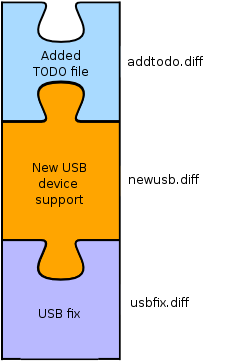
At the end of your hacking you'll end up with a stack of patches like in the following diagram:
Photo Sharing and Video Hosting at Photobucket

Now, if you want to mail send off the patches to your favourite developer mailing list, you pop them all out:

$ guilt-pop all

Then, you hand-edit each patch so that each includes a little description file, then push them in again in order one by one. This is a bit crude, but Jeff is working on some magic to make this easier. When you've done pushing them in again, running git-log should show you the changelog that you've done.

Finally, to mail them off, run:

$ guilt-patchbomb HEAD

A script will guide you through the process of patchbombing your mailing list.

Each patch stack is specific to whatever branch of your source tree you're working on. If you create a new branch, your Guilt files will be specific to that branch.

Good luck trying out Guilt. It's being actively developed at the moment, so expect it to become better over time :)

Monday, March 5, 2007

I Got Debian Installed From A Pendrive

Photo Sharing and Video Hosting at Photobucket

I now run Debian on my work PC!

I was pondering setting up a network boot server, until Weary suggested on irc that I could boot from a USB pendrive.

To accomplish this, download the boot image for Etch from here.

Then, zap a USB pendrive with the image (warning: this erases all data on the drive), do the following:

$ zcat boot.img.gz > /dev/sdb

This does the partitionless imaging of the drive (replace sdb with your actual USB device). If you want a partitioned USB drive, use /dev/sda1 instead. The advantage of the just writing without a partition table is that it doesn't need an MBR, reducing the number of things that could go wrong when attempting to boot from it. Be extra careful when supplying the device name, as you don't want to erase your hard drive.

Once that's done, mount the pendrive and copy over any Debian Etch .iso image that fits onto the top level directory of the filesystem on the drive, and it's ready! Plug it into your target machine, select "boot from USB" and watch it do its magic.